On this page
- Prepare before building
- 1. Create the company and choose a template
- 2. Arrange furniture around real movement
- 3. Configure rooms and audio
- 4. Set permissions before invitations
- 5. Invite a small pilot group
- 6. Run an acceptance checklist
- Budget and practical limits
- Frequently asked questions
- A short product overview
Start with a small template, configure access and audio, then pilot the office with a few people before inviting the whole company. A useful office answers three questions: where can people find colleagues, how do they start a conversation, and where does work remain after the meeting?
This guide follows HyoNova's workflow. Images were captured on 28 October 2026 in a local demo on production version 87663bba1. Names and records are fictional. These are interface captures, not a measured setup-time or connection-quality benchmark.
Prepare before building
Choose an accountable company owner and someone responsible for office setup.
List departments and roles without uploading sensitive files during the pilot.
Use a computer or tablet for the 3D office and a headset when testing audio.
Choose one initial purpose: daily collaboration, a shared project or visitor reception. Introduce further workflows after the first works.
1. Create the company and choose a template
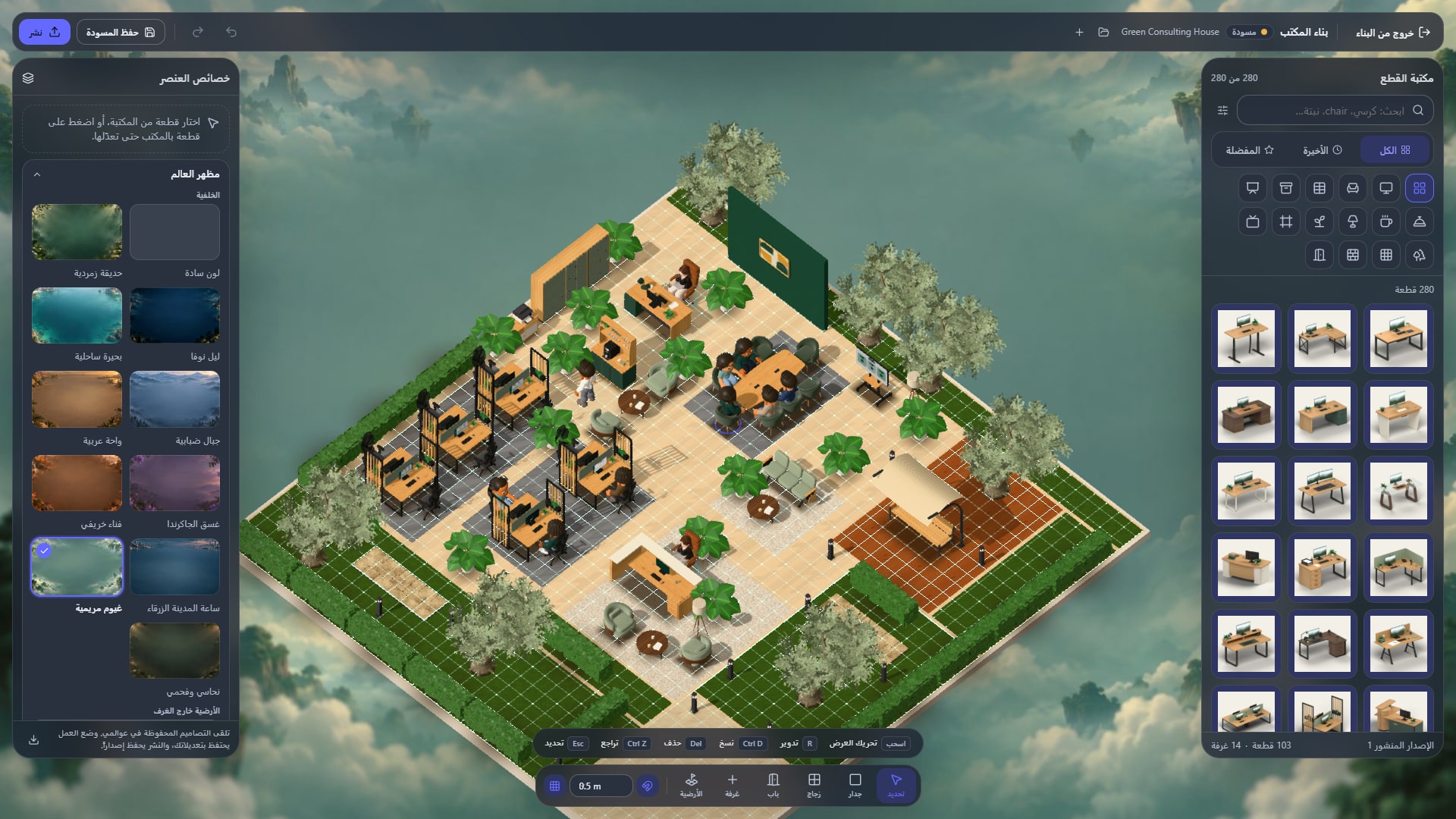
Choose an appropriate HyoNova plan, complete company and character setup, then select an office template. Pick a space sized for the pilot rather than the eventual company. Give it a recognizable name and make the arrival point easy to understand.
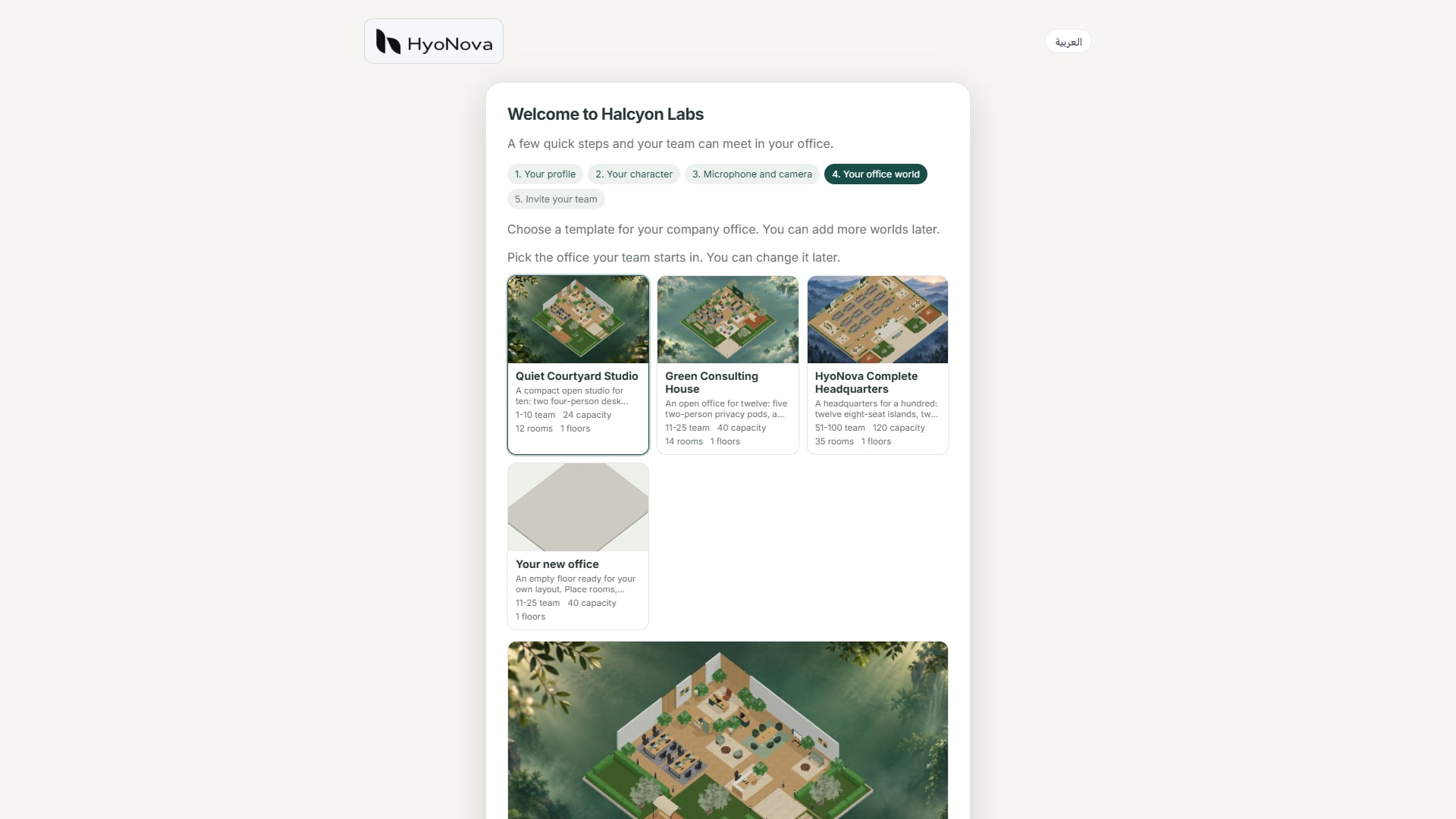
Actual product capture from a local demo on production version 87663bba1, captured on 28 October 2026. Fictional data.
A template is not an access policy. Review permissions separately. Start with an internal workspace; add a public reception when the knowledge base, host responsibilities and visitor scope are ready.
2. Arrange furniture around real movement
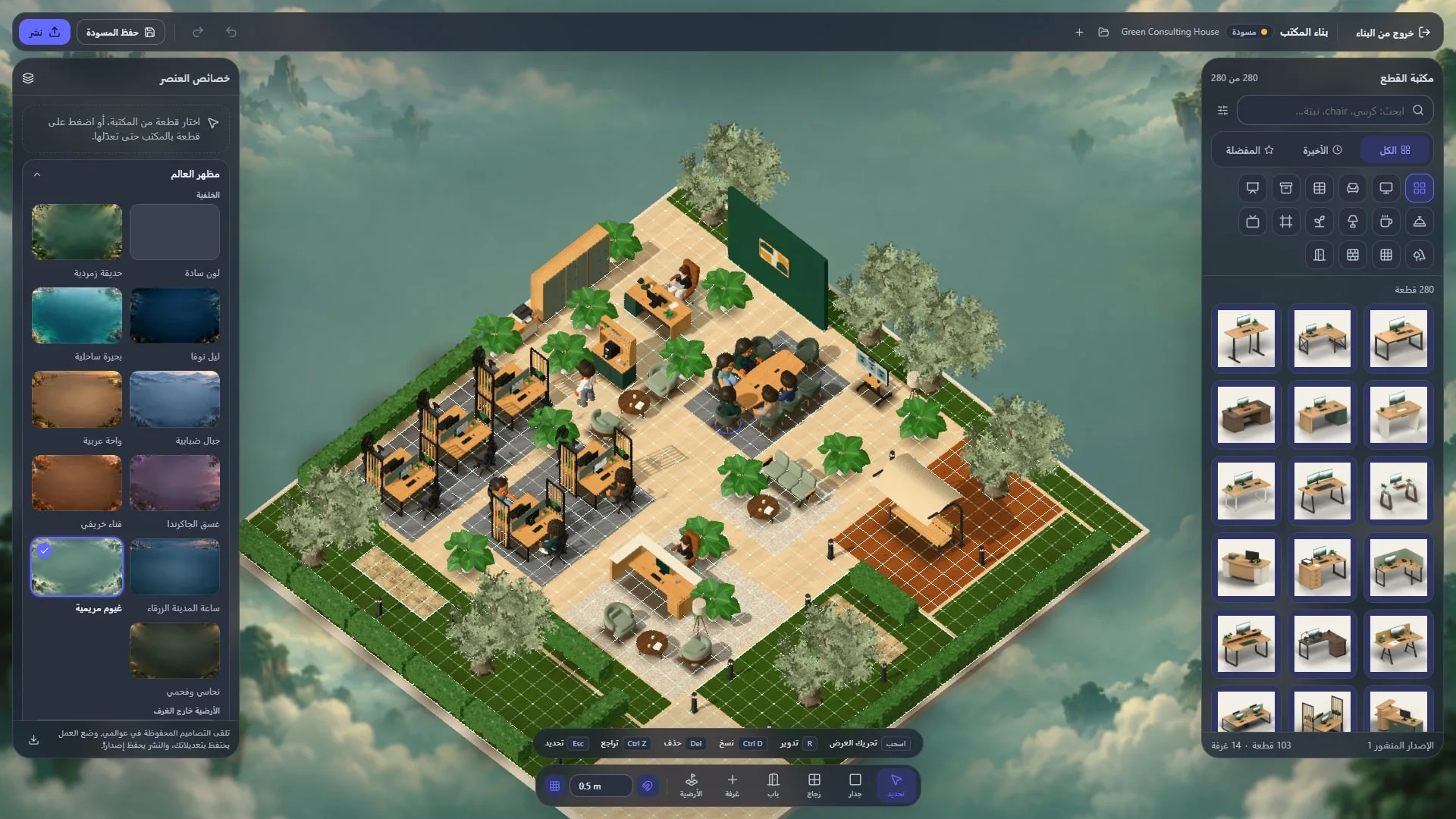
Open the builder, select library items and move or rotate them into a clear layout. Provide team space, a meeting area and somewhere for informal conversation. Check orientation from the user's position: a chair should face its desk, a monitor its user, and furniture should not block an entrance.
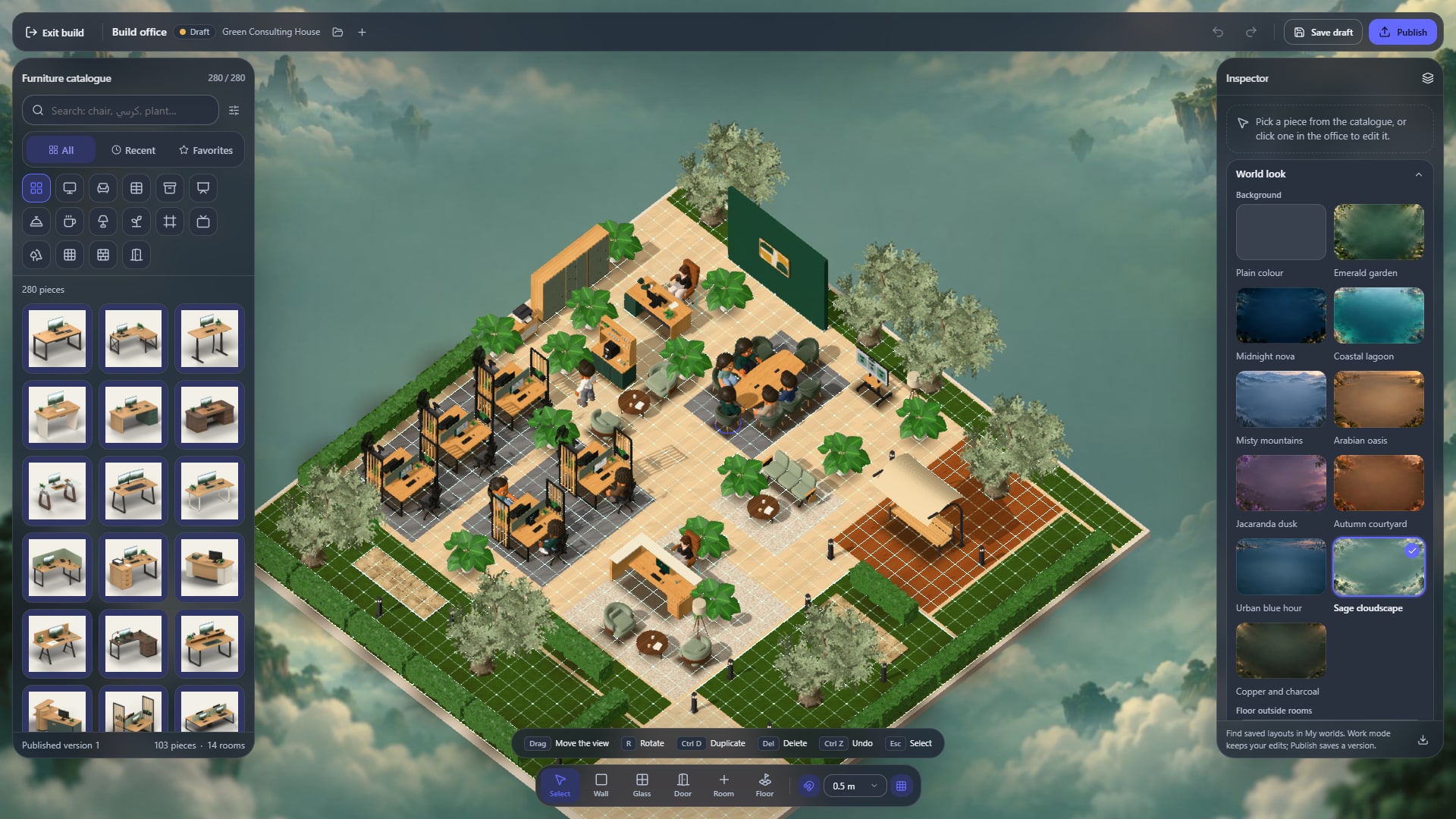
Actual product capture from a local demo on production version 87663bba1, captured on 28 October 2026. Fictional data.
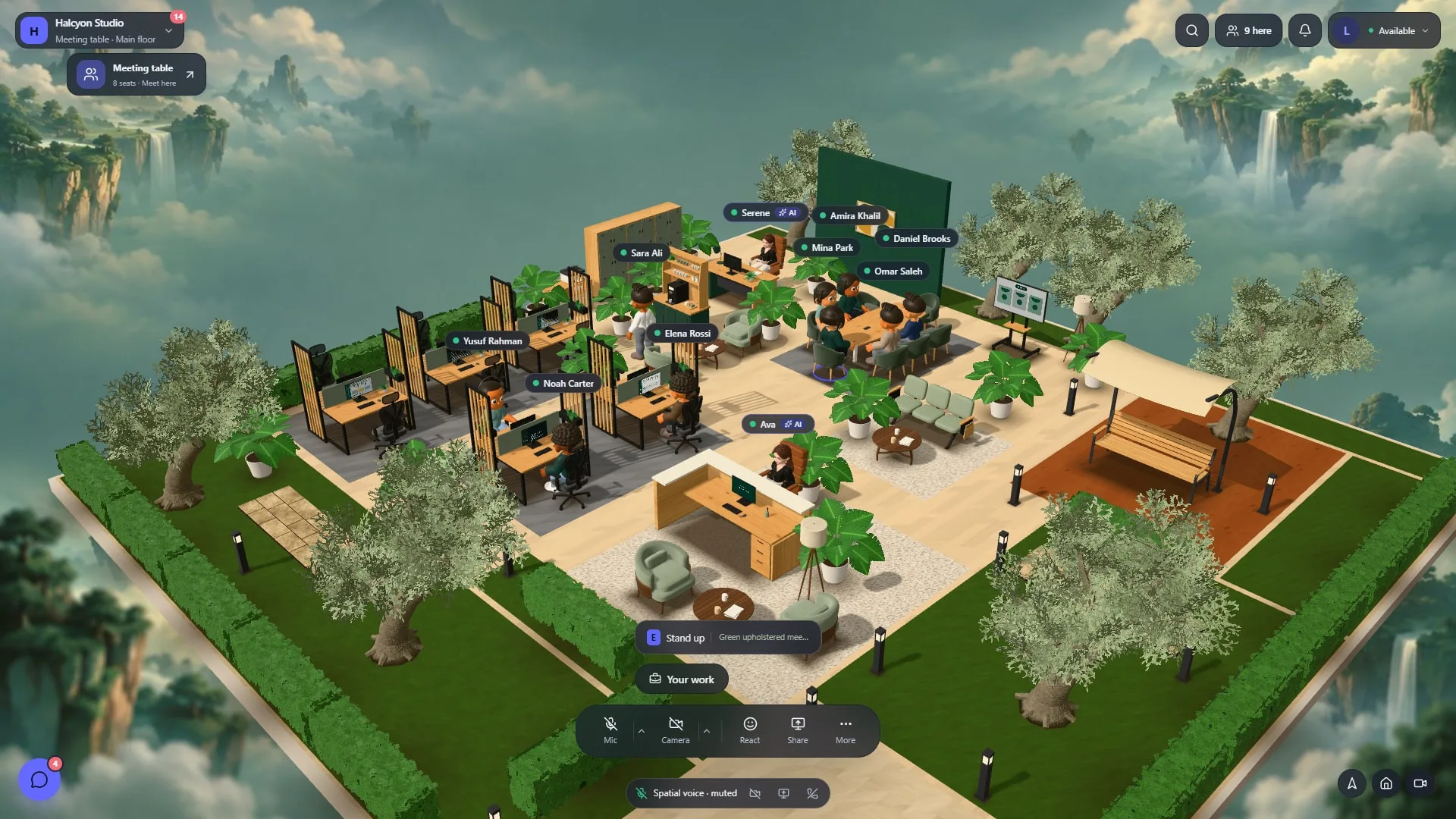
Save, leave the builder and walk through the office with a character. An overhead view does not reveal every obstruction or viewing problem. Test the camera angle people will use each day, rather than approving the space from a cinematic shot alone.
3. Configure rooms and audio
Decide where meetings happen and how participants reach them. With two testers using headsets, enter and leave an audio area, check mute and microphone selection, and share a fictional screen. Request device permissions when needed and make it clear when someone can be heard. Do not assume leaving a room mutes every other open session.
Write a short office convention: focus status means fewer interruptions, meetings need a purpose, and decisions belong in the project record. An avatar's presence should not become a proxy for productivity, especially across time zones.
4. Set permissions before invitations
Pilot role | Required access | Acceptance check |
|---|---|---|
Owner | Company administration and core settings | Recovery ownership and an appropriate backup administrator |
Team manager | Work oversight within granted scope | No assumption of automatic access to restricted finance or people records |
Employee | Authorized work, communication and files | Cannot grant roles or open restricted records |
Guest | A defined office or meeting | Scope, expiration and link-use limits |
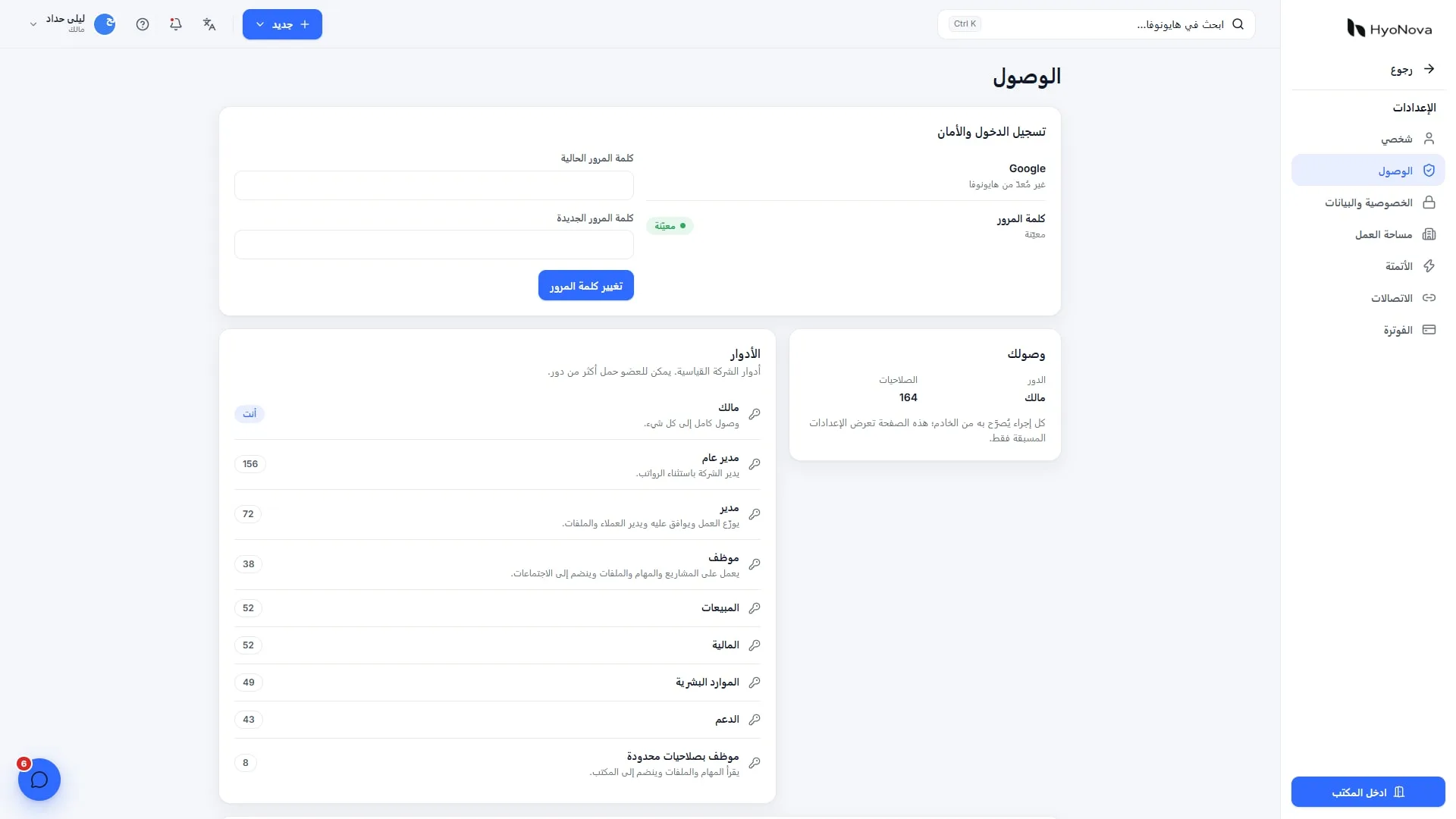
HyoNova provides standard and custom roles. Begin with least necessary access and test a restricted account. A hidden interface button alone is not sufficient evidence of a permission boundary.
5. Invite a small pilot group
Open People or member administration, choose invitation, enter the email address and select a role. Review both before sending. Pending invitations use seats alongside active members. Meeting guests and document signers are different from employee seats.
Give pilot members a short introduction: company link, movement, starting and stopping audio, and how to get help. End their first session with a concrete task or comment rather than a tour containing many unrelated links.
6. Run an acceptance checklist
A new member accepts an invitation and enters with the intended role.
Two people join a conversation, leave and verify the expected audio ends.
A tester shares a fictional screen and clearly stops sharing.
The team creates a task with owner and deadline, then finds it after the meeting.
A guest reaches the permitted destination without becoming a company member.
A removed test member cannot continue accessing previous work.
Record device, browser and result for each case. When something fails, separate microphone, permission, browser and office-setting causes, then repeat the same case after correction. One successful device does not establish universal compatibility.
Budget and practical limits
Free supports up to 10 members, one office and meetings limited to 30 minutes. Basic starts at $6 per member/month and Business at $15 on monthly billing; consult current annual rates and capacities. A public-office visitor is different from a meeting guest and can consume separately priced visitor capacity. An AI Employee is also separate from creating the office.
Frequently asked questions
Do I need a developer?
Templates and the builder cover normal office preparation. Custom requirements outside those controls need separate evaluation; not every architectural or integration idea is necessarily supported.
Does a phone offer the same 3D office?
The 3D experience is aimed at computers and tablets. Check actual device requirements before promising staff an identical phone workflow.
What should we do after the pilot?
Use the documentation, connect the office to projects, and review visitor access before opening reception. Expand invitations gradually and keep a fallback workflow during migration.
A short product overview
Watch the official English HyoNova overview for the office concept. It is a product introduction, not an independent benchmark or a step-by-step recording of this release. The screenshots above are the current 28 October captures.